
How to Fix the Most Common WordPress Errors?
Not sure how to fix Common WordPress Errors on your site? This beginner-friendly guide walks you through the most common problems and how to solve them yourself.
If you’ve spent any time running a WordPress site, you’ve probably run into at least one frustrating error screen. Whether it’s a white page, a database glitch, or a broken plugin, these issues pop up more often than anyone would like.
The good news? Most of them have straightforward fixes. This guide walks you through how to fix the most common WordPress errors without needing to be a developer.
Before diving into this post, check out our previous blog post, where we provide a step-by-step guide on how to fix the 403 Forbidden Error in 2026.
Why Do WordPress Errors Happen?
WordPress powers over 40% of all websites on the internet, so it’s no surprise that a huge community of users runs into the same handful of issues.
Errors typically come from plugin conflicts, outdated themes, server misconfigurations, or corrupted files. The trick is knowing how to identify what’s wrong before you start troubleshooting.
The Most Common WordPress Errors and How to Fix Them
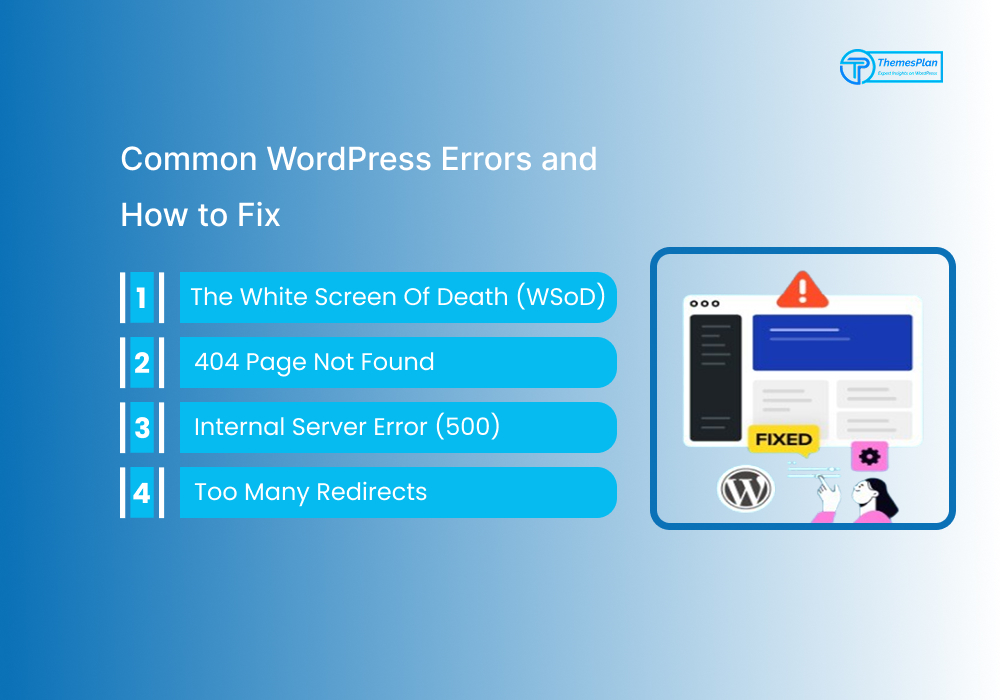
The White Screen of Death (WSoD)
You open your site and get a completely blank page, no error message, nothing. This is called the White Screen of Death, and it’s one of the most panic-inducing WordPress issues. A PHP error or a plugin/theme conflict usually causes it.
How to fix it: Start by enabling debug mode in your wp-config.php file. Add this line: define(‘WP_DEBUG’, true);. This will display the actual error. Then, disable all plugins via FTP by renaming the plugins folder. Re-enable them one by one to find the culprit.
Error Establishing a Database Connection
This error means WordPress can’t connect to your MySQL database. It’s usually a credentials issue, or the database server is down.
How to fix it: Check your wp-config.php file and make sure the database name, username, password, and host are correct. If they are, contact your hosting provider; the database server may need to be restarted.
404 Page Not Found
Getting a 404 error on pages that clearly exist? This is almost always a permalinks issue.
How to fix it: Go to Settings → Permalinks in your WordPress dashboard and click Save Changes without changing anything. This flushes and regenerates your .htaccess rules, which typically resolves the issue instantly.
Internal Server Error (500)
A 500 Internal Server Error is vague by nature, which makes it tricky. A corrupted .htaccess file or a PHP memory limit issue often causes it.
How to fix it: Via FTP, rename your .htaccess file to .htaccess_old, then regenerate it from Settings → Permalinks. If that doesn’t work, increase your PHP memory limit by adding define(‘WP_MEMORY_LIMIT’, ‘256M’); to wp-config.php.
Too Many Redirects
This error usually appears when your site URL settings are misconfigured, creating a redirect loop between HTTP and HTTPS.
How to fix it: Go to Settings → General and make sure both the WordPress Address and Site Address are identical and use the correct protocol (http:// or https://). If you can’t access the dashboard, update the values directly in the database via phpMyAdmin.
A Few General Habits That Prevent Common WordPress Errors
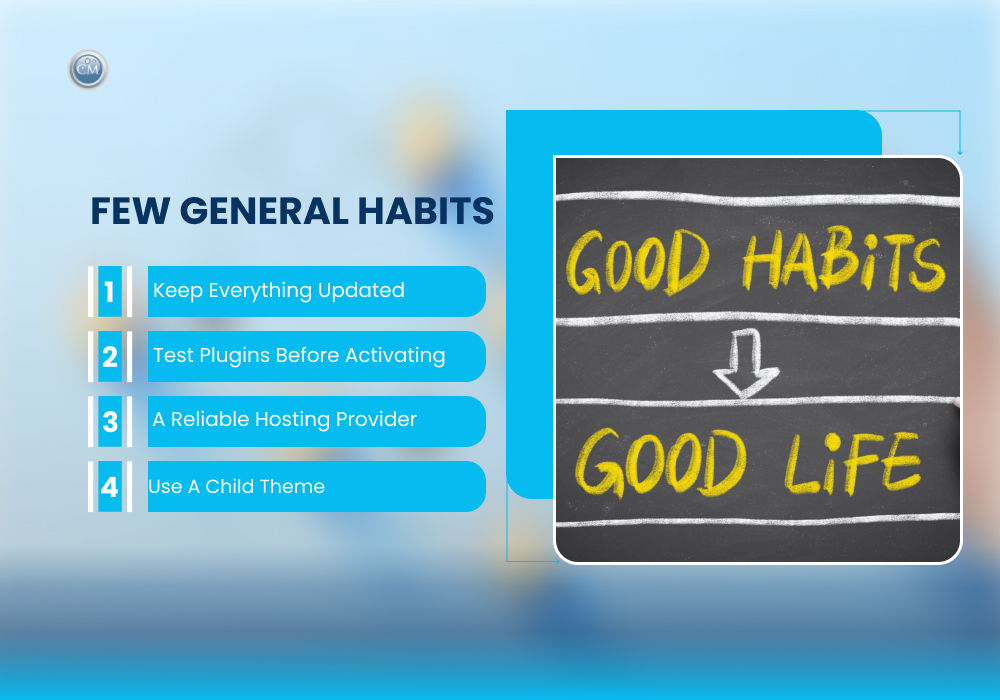
Knowing how to fix the most common WordPress errors is important, but preventing them is even better. Here are a few simple habits that go a long way:
- Keep everything updated. Outdated plugins, themes, and WordPress core versions are the number one source of errors and security vulnerabilities. Update regularly.
- Test plugins before activating them. Not every plugin plays nicely with your existing setup. Use a staging environment when testing new tools.
- Choose a reliable hosting provider. A lot of server-related errors are simply the result of poor hosting. A quality host makes a real difference in site stability.
- Use a child theme. Making changes directly to a parent theme means your edits get wiped out with every update and can introduce errors. Always use a child theme for customizations.
Frequently Asked Questions
What is the fastest way to fix the most common WordPress errors?
Start by deactivating all plugins and switching to a default theme. If the error disappears, reactivate items one by one to isolate the problem.
Do I need FTP access to fix WordPress errors?
Not always, but FTP is useful when you’re locked out of the dashboard. Most hosting providers also offer a file manager in the control panel as an alternative.
Why does my WordPress site keep showing a 404 error after I set up permalinks?
Your server may not have mod_rewrite enabled, or the .htaccess file may have incorrect permissions. Contact your host to confirm mod_rewrite is active.
Can a bad theme cause WordPress errors?
Yes. A poorly coded or outdated theme can cause white screen errors, broken layouts, and PHP conflicts. Always use themes from trusted sources like ThemesPlan.
Conclusion
WordPress errors are frustrating, but they’re rarely the end of the world. Most of the time, a simple fix like clearing your cache, deactivating a plugin, or updating a file is all it takes to get your site back on track.
The key is staying calm, working through the issue one step at a time, and knowing where to look. With the fixes covered in this guide, you’re already better prepared than most WordPress users out there.
And remember, a well-coded theme and a reliable hosting setup will save you from most of these headaches before they even start. Build smart, keep things updated, and your site will thank you for it.
Ready to build on a solid foundation? Explore our professionally built WordPress themes at ThemesPlan.com, designed for speed, stability, and zero headaches.